Understanding the Arduino Sketchbook: Opening and Saving Arduino Sketches

Understanding the Arduino Sketchbook: Opening and Saving Arduino Sketches

Understanding how the Arduino IDE sets up its file directory system can spare you some confusion when it comes to saving, organizing and opening your Arduino sketches (or sketches you have downloaded from the internet).

This week's episode covers the following:

  1. The Arduino Sketchbook folder
  2. How to change the default location where your Arduino sketches get saved
  3. What happens when an Arduino file does not have an enclosing sketch folder of the same name
  4. Where and how multiple tabs get saved in an Arduino sketch
  5. Why the pancreas of a woodchuck is better suited than our own

Want to fast-track your Arduino skills?

Click here to join our 12-part HD Video Course.

You are probably familiar with a file directory system on a computer. It's usually represented as a hierarchy of folders and files.

An example would be your C Drive - inside the C drive, you may have a folder for Applications, Users, and Systems files. Inside the Users folder, you might have subfolders for Documents, Downloads, Music, etc.

All the files on the computer get organized in this fashion, and Arduino sketches are no exception.

The Arduino Sketchbook Folder and Changing the Default Save Location

The default location where Arduino sketches you write will be saved is called the Sketchbook.

The Sketchbook is simply a folder on your computer like any other. It acts as a handy repository for sketches and is also where add-on code libraries get saved.

You can see the sketches in the Sketchbook folder by going to File > Sketchbook.

The default name of the Sketchbook folder is "Arduino" and the default location of the Sketchbook folder is in the "My Documents" folder (or just "Documents" for Mac users).

If your Sketchbook does not appear to be in this default location, you can see exactly where it is by opening the Arduino IDE and going to Arduino > Preferences.

The default file path for your sketches is listed at the top of Arduino Preferences window. Mine is:

/Users/michaelJames/Documents/Arduino

When I save a file in the Arduino IDE, this "Arduino" folder is the default location where the sketch will be saved, unless I choose to change that location by selecting a different folder on my computer's directory.

If you want to change this default location, you click the Browse button next to the file directory path and choose a different place. Pretty simple.

Sketch Folders

If you go into your file directory system and open up the Sketchbook folder (again, named "Arduino" by default), you may see a bunch of folders that you didn't make.

This is because every Arduino file must be inside a folder that has the same name as the file (there are some exceptions to this that we'll talk about in a moment).

Let me say that one more time because it is really important to understand.

Every Arduino file must be inside a folder that has the same name as the file

When I write a new sketch and save it, the Arduino IDE automatically creates a new folder that has the exact same name as the sketch itself. The Arduino file (which has the extension .ino) is placed inside this enclosing folder, which is called a sketch folder.

If you go into the Sketchbook folder and change the name of the enclosing folder, it will create some issues. The first issue is that when you go to File > Sketchbook, the sketch will no longer show up! If you want to open this sketch you need to go to the .ino file in your directory and open it from there.

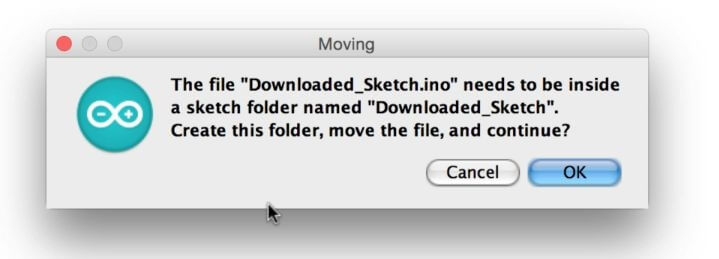
If you open a .ino file that is not inside an enclosing sketch folder of the exact same name, then you will get a pop-up from the Arduino IDE that says:

"The file "sketch_name.ino" needs to be inside a sketch folder named "sketch_name". Create this folder, move the file, and continue?"

If you choose Cancel, the sketch will not open. If you choose OK, then a folder gets created (it will have the same name as the sketch) and the .ino file is placed inside it.

This sketch folder will be created in whatever directory the .ino file was that you tried to open. For example, if you tried to open a .ino file that was in your My Downloads folder, then the enclosing sketch folder also will be created inside the My Downloads folder.

Saving Tabs in Arduino

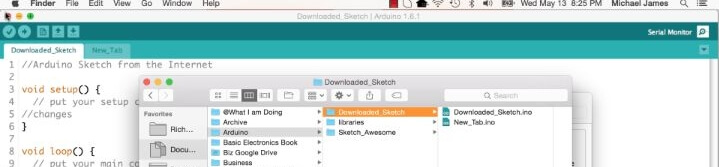
The exception to the rule about the sketch folder having the same name as the .ino file is when you create multiple tabs in an Arduino sketch.

The additional tabs do NOT need to bear the same name as the enclosing sketch folder.

Once you get a handle on some of these intricacies of the Arduino IDE file system, it can really help to clear things up.

Please take a moment to leave a comment if you have any insights or thoughts about this tutorial. I would love to hear them!

Jaksot(61)

PC - Download and Install the Arduino IDE

PC - Download and Install the Arduino IDE

Discussion: Before you begin using the Arduino IDE, you must first learn how to download, install, and set your preferences.  This lesson is specifically tailored for those who use a PC.  The next les...

19 Maalis 20177min

Arduino Integrated Development Environment Version

Arduino Integrated Development Environment Version

Discussion: The following videos will show you step by step how to download and install the Arduino Integrated Development Environment, or IDE for short. We'll also be setting up some preferences in ...

18 Maalis 20172min

Map of the Familiarization Module

Map of the Familiarization Module

Discussion: Before we can start diving into programming the microcontroller on the Arduino, we need to have a solid understanding of the tools used to make it happen.  Therefore, in this particular le...

17 Maalis 20172min

Parts List

Parts List

Discussion: In this video, I'll explain what parts you'll need to complete this Arduino Crash Course. Immediately below this discussion section, there is a summary checklist of links for these parts. ...

16 Maalis 20177min

Rebranding Clarification

Rebranding Clarification

Open Source Hardware Group is now Programming Electronics Academy - we rebranded!

15 Maalis 20171min

Our Premium Arduino Training

Our Premium Arduino Training

Check out our Premium Arduino Training Course.

14 Maalis 20172min

If Statement Conditionals

If Statement Conditionals

If Statement (and else-if), Comparison Operators and Conditions In the last lesson, we learned about the if statement. The if statement was the perfect choice for setting up instructions to run only w...

13 Maalis 201714min

Fade an LED with Arduino

Fade an LED with Arduino

Let's expand the repertoire of output that we can use by looking at the function analogWrite(). I experienced much confusion with analogWrite(), because I suspected that it had to do with the analog p...

13 Maalis 201720min

Suosittua kategoriassa Koulutus

rss-murhan-anatomia
voi-hyvin-meditaatiot-2
psykopodiaa-podcast
rss-narsisti
adhd-podi
aamukahvilla
rss-liian-kuuma-peruna
rss-eron-alkemiaa
rss-koira-haudattuna
rss-rahamania
rss-tietoinen-yhteys-podcast-2
rahapuhetta
kesken
mielipaivakirja
rss-duodecim-lehti
rss-vapaudu-voimaasi
rss-niinku-asia-on
rss-uskonto-on-tylsaa
rss-onks-ok
rss-turun-yliopisto