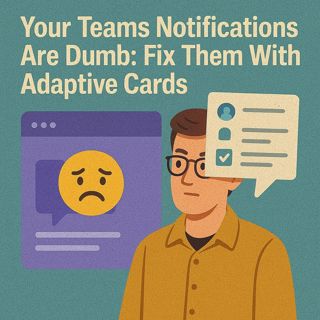
Your Teams Notifications Are Dumb: How To Fix Them With Microsoft Lists, Adaptive Cards & Power Automate

Your Teams Notifications Are Dumb: How To Fix Them With Microsoft Lists, Adaptive Cards & Power Automate

Your Teams notifications are dumb. They spam reminders nobody reads and look like they were designed in 2003. In this episode, we fix that by walking through three pieces: structuring your data in Microsoft Lists, designing an Adaptive Card that’s actually clickable, and wiring it together with Power Automate so users can act directly in chat. Once those pieces connect, boring alerts turn into mini‑apps inside Teams—approve, snooze, update—without anyone leaving the conversation.

WHY TEAMS NOTIFICATIONS FAIL

Most Teams alerts are static “FYI” messages with no real action, so users swipe them away on autopilot. We break down why generic bot posts and empty reminders destroy response rates, how they push real work back into email, chats, and spreadsheets, and why requesters end up chasing people manually for approvals that should have been one click. Using real examples (like a purchase approval that stalled for weeks because the notification was useless), we show the pattern: no context, no buttons, no clear choice equals no action. Adaptive Cards flip that script by embedding the decision—approve, reject, snooze, update—directly in the message so the notification itself becomes the workflow.

THE SECRET WEAPON: MICROSOFT LISTS

Adaptive Cards are only as good as the data behind them, and that’s where Microsoft Lists quietly becomes the engine of the whole setup. We show how to move from messy, free‑text “Notes” fields to clean columns for TaskName, DueDate, Owner, and Status so your cards can display clear labels, due dates, and people instead of vague blobs of text. You’ll learn how to pick the right column types (choice, date, person) so reminders and buttons make sense, and how to think of Lists as your schema: the structured pantry that feeds every Adaptive Card recipe. With a clean List, your cards stop being random text blocks and start behaving like simple apps that users can trust.

DESIGNING YOUR FIRST ADAPTIVE CARD (WITHOUT GOING MAD)

Designing Adaptive Cards doesn’t have to mean fighting raw JSON. We walk through using the Adaptive Card Designer as a no‑risk sandbox: add text blocks, fields, and buttons visually, test how the card looks in Teams, and only then copy the JSON into Power Automate. You’ll see a concrete pattern for a task card—title, due date, owner, and two buttons (Done / Snooze)—and how each element maps back to your List columns. The result is a card that reads like a clear question with obvious actions instead of a wall of text that people ignore.

WIRING IT TOGETHER WITH POWER AUTOMATE

Finally, we connect everything with Power Automate so the card isn’t just pretty, it actually updates your data. We show how to trigger on List changes or schedules, send the Adaptive Card into Teams, capture the button response, and write the result back into Microsoft Lists—changing status, updating dates, or logging who clicked what. You’ll learn how to avoid noisy flows that spam channels, how to target the right user or channel for each card, and how to keep the loop tight so one click in Teams really means “task done” in your system of record.

WHAT YOU’LL LEARN
  • Why static Teams notifications fail and train users to ignore your processes.
  • How structured data in Microsoft Lists turns Adaptive Cards from noisy alerts into mini‑apps.
  • How to design your first Adaptive Card with clear actions (approve, done, snooze) in the Adaptive Card Designer.
  • How to wire Adaptive Cards to Power Automate so button clicks update Microsoft Lists automatically.
  • How to reduce notification noise while increasing actual task completion in Teams.
THE CORE INSIGHT

The core insight of this episode is that Teams notifications fail because they’re static and context‑free, not because people “don’t like change.” Once you pair structured data in Microsoft Lists with Adaptive Cards and Power Automate, every alert becomes a one‑click decision surface—turning noisy pings into workflows that users actually finish inside Teams instead of quietly ignoring.

WHO THIS EPISODE IS FOR
  • Power Automate and Power Platform builders who send notifications into Teams.
  • Microsoft 365 admins and owners who want fewer “did you see this?” chaser messages.
  • Team leads and process owners whose approvals and tasks keep stalling in chat.
  • SPFx and app makers who want to blend Lists, Adaptive Cards, and automation into simple, effective experiences.
ABOUT THE AUTHOR / HOST

Mirko Peters is a Microsoft 365 and Power Platform consultant and host of the M365.FM podcast, helping organizations treat Teams, Microsoft Lists, Power Automate, and Adaptive Cards as one integrated operating system instead of a pile of disconnected bots and email reminders. He works with teams running on Microsoft 365 and Azure to design structured data, notifications, and automation patterns so that every ping in Teams becomes a chance to finish work—not another message people swipe away.

Become a supporter of this podcast: https://www.spreaker.com/podcast/m365-fm-modern-work-security-and-productivity-with-microsoft-365--6704921/support.

Denne episoden er hentet fra en åpen RSS-feed og er ikke publisert av Podme. Den kan derfor inneholde annonser.

Episoder(779)

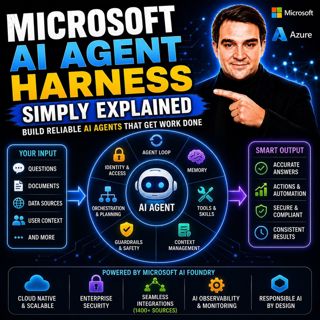
Microsoft AI Agent Harness - Simply Explained

Microsoft AI Agent Harness - Simply Explained

Writing the perfect AI prompt used to be the goal of every AI developer. But as businesses began asking AI to perform increasingly complex tasks—analyzing code, researching topics, coordinating workfl...

17 Jul 16min
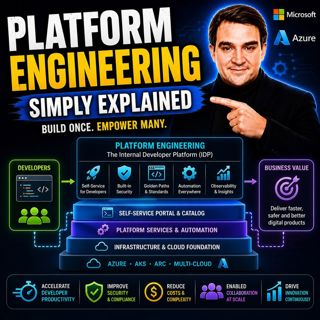
Platform Engineering - Simply Explained

Platform Engineering - Simply Explained

For years, DevOps promised to break down the barriers between development and operations by giving teams greater ownership over the software they build. While the idea was powerful, reality became far...

16 Jul 16min
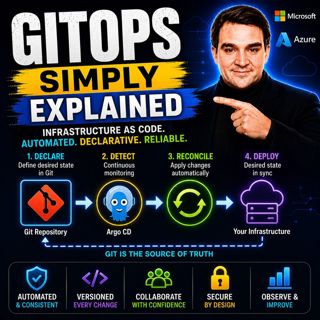
GitOps - Simply Explained

GitOps - Simply Explained

Managing Kubernetes manually quickly becomes a nightmare as environments grow. One engineer updates a deployment directly using kubectl, another changes a ConfigMap through the Azure portal, and sudde...

16 Jul 16min
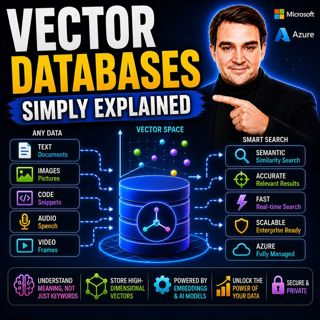
Vector Databases - Simply Explained

Vector Databases - Simply Explained

Large Language Models like GPT-4o, Microsoft Copilot, and ChatGPT are incredibly powerful, but they all depend on one critical technology that most people never hear about: vector databases. Tradition...

16 Jul 14min

RAG on Azure — Simply Explained

RAG on Azure — Simply Explained

Large Language Models like GPT-4o are incredibly powerful, but they have two major limitations. First, their knowledge is frozen in time, meaning they don't automatically know about recent events, cha...

16 Jul 13min
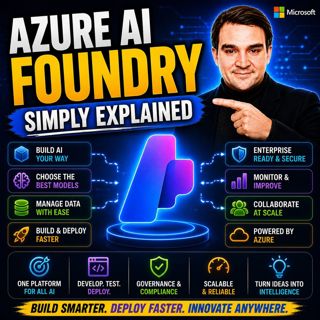
Azure AI Foundry - Simply Explained

Azure AI Foundry - Simply Explained

Artificial Intelligence is evolving faster than almost any other technology, and with new models, frameworks, and AI services appearing almost every month, it's becoming increasingly difficult to know...

16 Jul 14min

Microsoft Defender XDR - Simply Explained

Microsoft Defender XDR - Simply Explained

Modern cyberattacks rarely target a single system. An attack might begin with a phishing email, move to a compromised device, steal user credentials, access cloud applications, and finally exfiltrate ...

16 Jul 14min

Microsoft Sentinel - Simply Explained

Microsoft Sentinel - Simply Explained

Modern cyberattacks rarely happen in a single moment. Attackers often move slowly, testing identities, exploring systems, downloading data, and establishing persistence over days, weeks, or even month...

16 Jul 14min

Populært innen Politikk og nyheter

giver-og-gjengen-vg
aftenpodden-usa
fotballpodden-2
aftenpodden
forklart
stopp-verden
popradet
det-store-bildet
rss-gukild-johaug
hanna-de-heldige
rss-ness
aftenbla-bla
nokon-ma-ga
dine-penger-pengeradet
rss-penger-polser-og-politikk
lydartikler-fra-aftenposten
rss-utenrikskomiteen-med-bogen-og-grasvik
rss-hor-na-krim-2
e24-podden
unitedno