Understanding the Arduino Sketchbook: Opening and Saving Arduino Sketches

Understanding the Arduino Sketchbook: Opening and Saving Arduino Sketches

Understanding how the Arduino IDE sets up its file directory system can spare you some confusion when it comes to saving, organizing and opening your Arduino sketches (or sketches you have downloaded from the internet).

This week's episode covers the following:

  1. The Arduino Sketchbook folder
  2. How to change the default location where your Arduino sketches get saved
  3. What happens when an Arduino file does not have an enclosing sketch folder of the same name
  4. Where and how multiple tabs get saved in an Arduino sketch
  5. Why the pancreas of a woodchuck is better suited than our own

Want to fast-track your Arduino skills?

Click here to join our 12-part HD Video Course.

You are probably familiar with a file directory system on a computer. It's usually represented as a hierarchy of folders and files.

An example would be your C Drive - inside the C drive, you may have a folder for Applications, Users, and Systems files. Inside the Users folder, you might have subfolders for Documents, Downloads, Music, etc.

All the files on the computer get organized in this fashion, and Arduino sketches are no exception.

The Arduino Sketchbook Folder and Changing the Default Save Location

The default location where Arduino sketches you write will be saved is called the Sketchbook.

The Sketchbook is simply a folder on your computer like any other. It acts as a handy repository for sketches and is also where add-on code libraries get saved.

You can see the sketches in the Sketchbook folder by going to File > Sketchbook.

The default name of the Sketchbook folder is "Arduino" and the default location of the Sketchbook folder is in the "My Documents" folder (or just "Documents" for Mac users).

If your Sketchbook does not appear to be in this default location, you can see exactly where it is by opening the Arduino IDE and going to Arduino > Preferences.

The default file path for your sketches is listed at the top of Arduino Preferences window. Mine is:

/Users/michaelJames/Documents/Arduino

When I save a file in the Arduino IDE, this "Arduino" folder is the default location where the sketch will be saved, unless I choose to change that location by selecting a different folder on my computer's directory.

If you want to change this default location, you click the Browse button next to the file directory path and choose a different place. Pretty simple.

Sketch Folders

If you go into your file directory system and open up the Sketchbook folder (again, named "Arduino" by default), you may see a bunch of folders that you didn't make.

This is because every Arduino file must be inside a folder that has the same name as the file (there are some exceptions to this that we'll talk about in a moment).

Let me say that one more time because it is really important to understand.

Every Arduino file must be inside a folder that has the same name as the file

When I write a new sketch and save it, the Arduino IDE automatically creates a new folder that has the exact same name as the sketch itself. The Arduino file (which has the extension .ino) is placed inside this enclosing folder, which is called a sketch folder.

If you go into the Sketchbook folder and change the name of the enclosing folder, it will create some issues. The first issue is that when you go to File > Sketchbook, the sketch will no longer show up! If you want to open this sketch you need to go to the .ino file in your directory and open it from there.

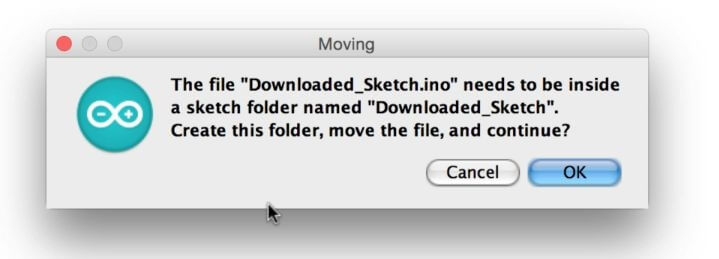
If you open a .ino file that is not inside an enclosing sketch folder of the exact same name, then you will get a pop-up from the Arduino IDE that says:

"The file "sketch_name.ino" needs to be inside a sketch folder named "sketch_name". Create this folder, move the file, and continue?"

If you choose Cancel, the sketch will not open. If you choose OK, then a folder gets created (it will have the same name as the sketch) and the .ino file is placed inside it.

This sketch folder will be created in whatever directory the .ino file was that you tried to open. For example, if you tried to open a .ino file that was in your My Downloads folder, then the enclosing sketch folder also will be created inside the My Downloads folder.

Saving Tabs in Arduino

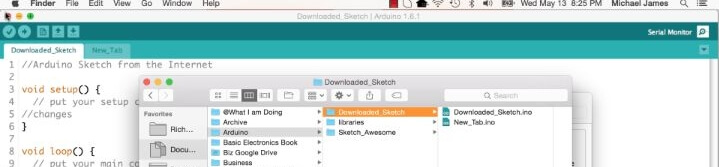
The exception to the rule about the sketch folder having the same name as the .ino file is when you create multiple tabs in an Arduino sketch.

The additional tabs do NOT need to bear the same name as the enclosing sketch folder.

Once you get a handle on some of these intricacies of the Arduino IDE file system, it can really help to clear things up.

Please take a moment to leave a comment if you have any insights or thoughts about this tutorial. I would love to hear them!

Episoder(61)

Arduino Course for Absolute Beginners 2nd Edition

Arduino Course for Absolute Beginners 2nd Edition

29 Aug 20173min

What is Arduino?

What is Arduino?

Have you seen some really cool stuff being made with a thing called Arduino? What is Arduino anyway? It sounds like an Italian sandwich with extra cheese or something... Well - it's that and a lot mor...

28 Apr 20174min

How to change the font color in the Arduino IDE

How to change the font color in the Arduino IDE

Have you ever wanted to change the font color in the Arduino IDE? Maybe it is hard for you to read the light grey comments in the Arduino IDE, or maybe you prefer something a little bolder. Whatever y...

27 Apr 20174min

Use Serial.print() to display Arduino output on your computer monitor: Part 2

Use Serial.print() to display Arduino output on your computer monitor: Part 2

In many cases while using an Arduino, you will want to see the data being generated by the Arduino. One common method of doing this is using the Serial.print() function from the Serial library to disp...

26 Apr 20176min

Use Serial.print() to Display Arduino output on your computer monitor: Part 1

Use Serial.print() to Display Arduino output on your computer monitor: Part 1

In many cases while using an Arduino, you will want to see the data being generated by the Arduino. One common method of doing this is using the Serial.print() function from the Serial library to disp...

25 Apr 20178min

How to make a secret knock detector to trigger anything with only an Arduino and a few cheap components

How to make a secret knock detector to trigger anything with only an Arduino and a few cheap components

There are a couple good use-case scenarios for making a secret knock detector using an Arduino. You are a spy who needs to authenticate your cohorts You are a super hero who wants a secret knock to o...

24 Apr 201712min

Arduino Pseudo Random Non-Consecutive Number Generator

Arduino Pseudo Random Non-Consecutive Number Generator

In this video we demonstrate how to create pseudo random numbers with Arduino - with a useful twist. This lesson was inspired by the following viewer question: How do I create Random Non-Consecutive ...

23 Apr 201711min

A Review of Make: Magazine

A Review of Make: Magazine

I don't subscribe to many magazines, but I love my subscription to Make: magazine. And even though I rarely have time to sit down and enjoy a magazine in peace and quiet (parents forget what peace and...

22 Apr 20178min

Populært innen Fakta

mikkels-paskenotter
fastlegen
dine-penger-pengeradet
relasjonspodden-med-dora-thorhallsdottir-kjersti-idem
foreldreradet
treningspodden
rss-strid-de-norske-borgerkrigene
jakt-og-fiskepodden
sinnsyn
rss-kunsten-a-leve
hverdagspsyken
rss-var-forste-kaffe
fryktlos
rss-kull
gravid-uke-for-uke
rss-bisarr-historie
lederskap-nhhs-podkast-om-ledelse
hagespiren-podcast
takk-og-lov-med-anine-kierulf
tomprat-med-gunnar-tjomlid