Understanding the Arduino Sketchbook: Opening and Saving Arduino Sketches

Understanding the Arduino Sketchbook: Opening and Saving Arduino Sketches

Understanding how the Arduino IDE sets up its file directory system can spare you some confusion when it comes to saving, organizing and opening your Arduino sketches (or sketches you have downloaded from the internet).

This week's episode covers the following:

  1. The Arduino Sketchbook folder
  2. How to change the default location where your Arduino sketches get saved
  3. What happens when an Arduino file does not have an enclosing sketch folder of the same name
  4. Where and how multiple tabs get saved in an Arduino sketch
  5. Why the pancreas of a woodchuck is better suited than our own

Want to fast-track your Arduino skills?

Click here to join our 12-part HD Video Course.

You are probably familiar with a file directory system on a computer. It's usually represented as a hierarchy of folders and files.

An example would be your C Drive - inside the C drive, you may have a folder for Applications, Users, and Systems files. Inside the Users folder, you might have subfolders for Documents, Downloads, Music, etc.

All the files on the computer get organized in this fashion, and Arduino sketches are no exception.

The Arduino Sketchbook Folder and Changing the Default Save Location

The default location where Arduino sketches you write will be saved is called the Sketchbook.

The Sketchbook is simply a folder on your computer like any other. It acts as a handy repository for sketches and is also where add-on code libraries get saved.

You can see the sketches in the Sketchbook folder by going to File > Sketchbook.

The default name of the Sketchbook folder is "Arduino" and the default location of the Sketchbook folder is in the "My Documents" folder (or just "Documents" for Mac users).

If your Sketchbook does not appear to be in this default location, you can see exactly where it is by opening the Arduino IDE and going to Arduino > Preferences.

The default file path for your sketches is listed at the top of Arduino Preferences window. Mine is:

/Users/michaelJames/Documents/Arduino

When I save a file in the Arduino IDE, this "Arduino" folder is the default location where the sketch will be saved, unless I choose to change that location by selecting a different folder on my computer's directory.

If you want to change this default location, you click the Browse button next to the file directory path and choose a different place. Pretty simple.

Sketch Folders

If you go into your file directory system and open up the Sketchbook folder (again, named "Arduino" by default), you may see a bunch of folders that you didn't make.

This is because every Arduino file must be inside a folder that has the same name as the file (there are some exceptions to this that we'll talk about in a moment).

Let me say that one more time because it is really important to understand.

Every Arduino file must be inside a folder that has the same name as the file

When I write a new sketch and save it, the Arduino IDE automatically creates a new folder that has the exact same name as the sketch itself. The Arduino file (which has the extension .ino) is placed inside this enclosing folder, which is called a sketch folder.

If you go into the Sketchbook folder and change the name of the enclosing folder, it will create some issues. The first issue is that when you go to File > Sketchbook, the sketch will no longer show up! If you want to open this sketch you need to go to the .ino file in your directory and open it from there.

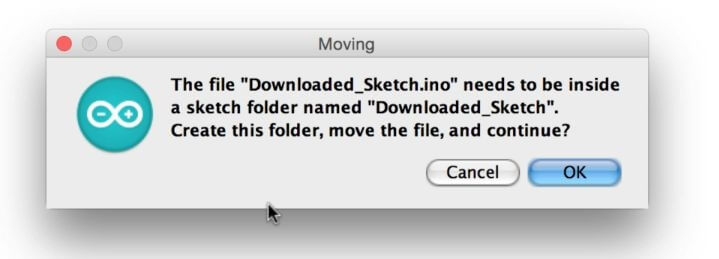
If you open a .ino file that is not inside an enclosing sketch folder of the exact same name, then you will get a pop-up from the Arduino IDE that says:

"The file "sketch_name.ino" needs to be inside a sketch folder named "sketch_name". Create this folder, move the file, and continue?"

If you choose Cancel, the sketch will not open. If you choose OK, then a folder gets created (it will have the same name as the sketch) and the .ino file is placed inside it.

This sketch folder will be created in whatever directory the .ino file was that you tried to open. For example, if you tried to open a .ino file that was in your My Downloads folder, then the enclosing sketch folder also will be created inside the My Downloads folder.

Saving Tabs in Arduino

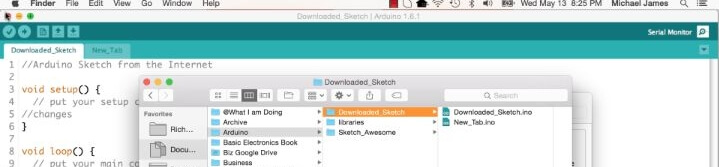
The exception to the rule about the sketch folder having the same name as the .ino file is when you create multiple tabs in an Arduino sketch.

The additional tabs do NOT need to bear the same name as the enclosing sketch folder.

Once you get a handle on some of these intricacies of the Arduino IDE file system, it can really help to clear things up.

Please take a moment to leave a comment if you have any insights or thoughts about this tutorial. I would love to hear them!

Episoder(61)

How to Use and Understand the Arduino Reference

How to Use and Understand the Arduino Reference

So you just opened up your fancy new gadget - maybe an awesome DSLR camera, or the newest gaming system, or maybe a new Blu-ray player. As you gladly tear away the packaging - you notice a small book...

12 Apr 201712min

Using Red-Green-Blue (RGB) LEDs with Arduino (Common Cathode Type)

Using Red-Green-Blue (RGB) LEDs with Arduino (Common Cathode Type)

In this tutorial we describe using RGB LEDs of the Common Cathode Type.  We will describe setting up the circuit, talk about the LED and discuss the code used to adjust the hue.

11 Apr 201714min

Using Random Numbers with Arduino

Using Random Numbers with Arduino

This video tutorial talks about using the random() and randomSeed() functions with Arduino.  It is pretty straight forward, but there are some intricacies worth noting. Creating truly random numbers i...

10 Apr 201713min

Kit-on-a-Shield for Arduino

Kit-on-a-Shield for Arduino

Ever ever spent too much time searching for a 220 ohm resistor or just one more jumper wire? Are you sure you had that extra LED, LDR, [Fill in the blank], but have no idea where it went? Do you jus...

9 Apr 20171min

How to Make One Button Have the Functionality of Two or More with Arduino

How to Make One Button Have the Functionality of Two or More with Arduino

Do you have an application where you want multiple buttons for different user inputs? Maybe you have a timer and you want one button for minutes and another for hours. But there is a problem – you on...

8 Apr 201715min

Understanding HIGH and LOW Arduino Pin States

Understanding HIGH and LOW Arduino Pin States

If you are just getting started with Arduino, you might be wondering what the heck all this HIGH and LOW stuff everyone is talking about really means. At first I just figured everyone using micro-cont...

7 Apr 201712min

Floating Pins, Pull-Up Resistors and Arduino

Floating Pins, Pull-Up Resistors and Arduino

Floating Pins on Arduino have always been a bit of mystery to me.  It just never made much sense.  I did this video more for my own sake - just to concrete it in my brain.  I hope it can add some soli...

6 Apr 201710min

The MOST guaranteed way to NOT buy a Fake Arduino  (The Story of Pizza-Duino)

The MOST guaranteed way to NOT buy a Fake Arduino (The Story of Pizza-Duino)

Let's not be duped by people trying to sell us authentic Arduino's that are counterfeit.  This video will show you the one way to be sure you get the real deal, and five methods of telling if you boug...

5 Apr 20175min

Populært innen Fakta

mikkels-paskenotter
fastlegen
dine-penger-pengeradet
relasjonspodden-med-dora-thorhallsdottir-kjersti-idem
foreldreradet
treningspodden
rss-strid-de-norske-borgerkrigene
jakt-og-fiskepodden
sinnsyn
rss-kunsten-a-leve
hverdagspsyken
rss-var-forste-kaffe
fryktlos
rss-kull
gravid-uke-for-uke
rss-bisarr-historie
lederskap-nhhs-podkast-om-ledelse
hagespiren-podcast
takk-og-lov-med-anine-kierulf
tomprat-med-gunnar-tjomlid